


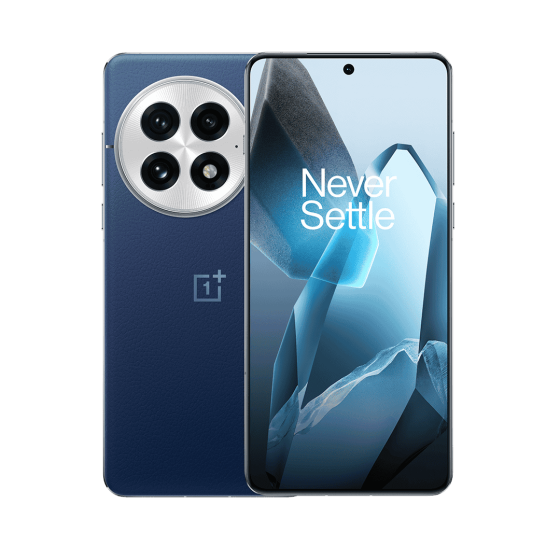
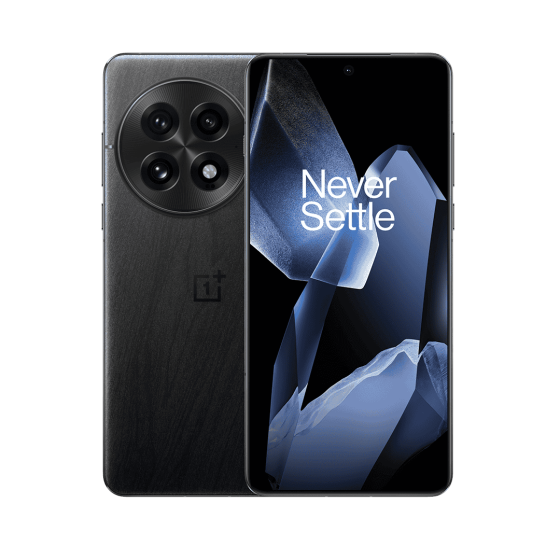
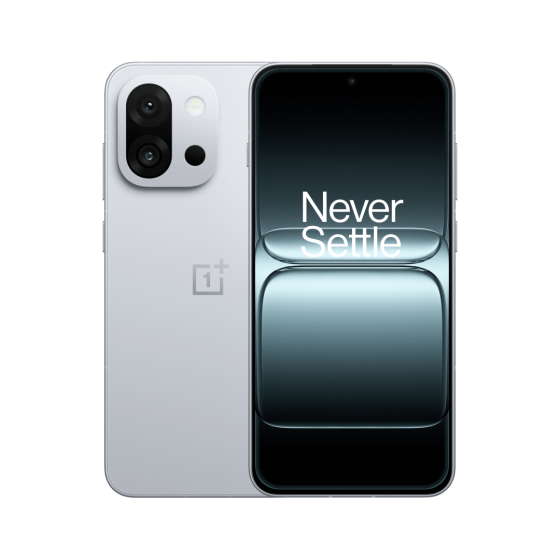
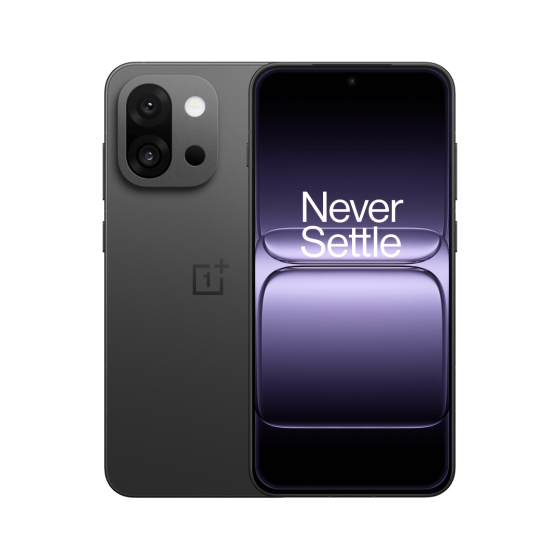
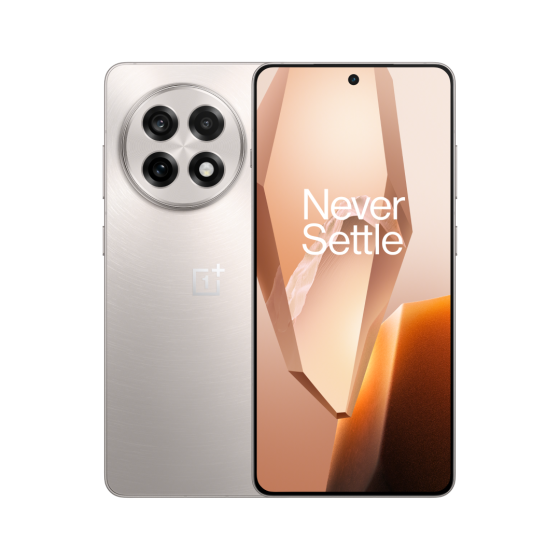
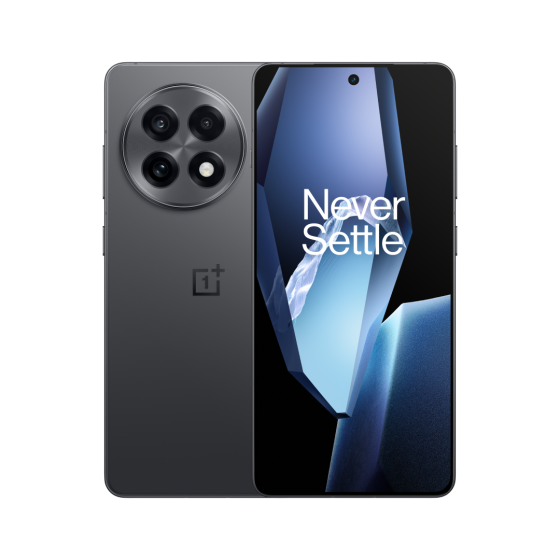
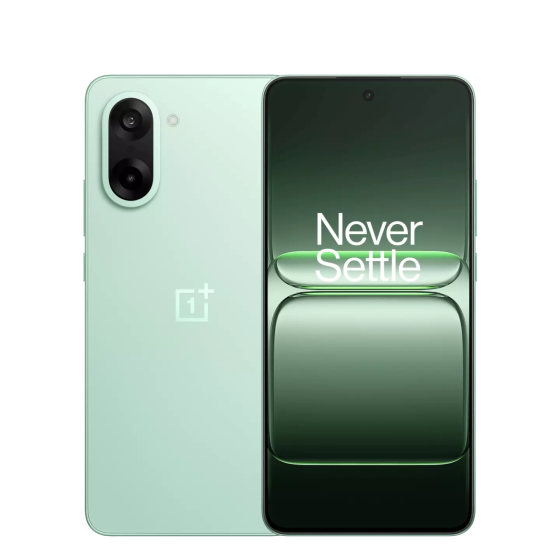
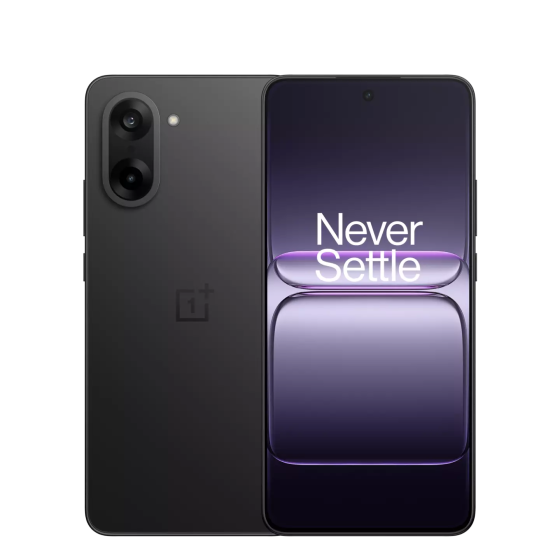
User Guide for Shadow Defending Mobile Phones
Part 1: Quick Start
Unpacking and Initial Setup
Your privacy-safe phone has been pre-configured with all basic settings, ready to use right out of the box. We have simplified the initial setup process to ensure the highest level of security from the very beginning.
Unlocking for the first time
Press and hold the power button to turn on the device. On the lock screen, enter the random lock screen password you set when placing your order on the official website to access the system.

Force to set a destruction password
Upon successful entry into the system, a wizard will automatically pop up on the screen, compelling you to set a "destroy password" immediately. This is an essential step in activating the core security features of the device.
Activation completed
Follow the on-screen prompts to create and confirm your destruction password. Once the settings are complete, your device is fully activated. You can then proceed to the "Settings" app to create or modify your regular primary unlock password.
Overview of Core Security Features
Coercive destruction
Input the destruction password in case of emergency to instantly and irreversibly destroy all data on the device.Secure App Store
We provide pure and officially verified applications to eliminate the risks of malware and tampering.
Active defense
Monitor and block in real-time any access to sensitive data such as photo albums and files by untrusted applications.
Part 2: Detailed Explanation of the Duress Wipe Function
What is forced destruction?
"Coercive Destruction" is an ultimate security feature designed to address potential physical coercion you may encounter. When you are forced to unlock your device, you can enter a preset "destruction password". On the surface, the device will unlock normally and enter a disguised interface, but an uninterruptible military-grade data destruction process has already been initiated in the background to ensure that your sensitive information does not fall into the wrong handsHow to reset the destruction password?
Enter Security Settings
Open the "Settings" app, navigate to "Password & Security" > "Lock Screen Password"Lock screen password
Click on the "Lock Screen Password" option. The system will ask you to verify your primary unlock password first, and after modification, it will automatically request you to set a destruction password again.
Create a destruction password
Enter a password that is different from your master password and easy to remember under pressure. Please remember that once you use this password, the data will be permanently destroyed.
Confirm and activate
Enter again to confirm your destruction password. Once completed, the function will be activated.
In-depth Analysis of Data Destruction Technology
Simply deleting a file does not truly erase the data; it merely removes the "pointer" to the file, while the actual data remains on the storage medium and can be recovered using professional tools. Our data destruction process aims to thoroughly and physically eliminate the data, making it unrecoverable.
Data Destruction Execution Process
Immediately send an instruction to the Hardware Security Module (HSM) to permanently destroy the Master Encryption Key (MEK) used for full disk encryption.
Call the underlying instructions of the flash chip firmware to reset all physical storage units, including the system reserved space.
Perform single or multiple overwrites based on the NIST 800-88 Purge standard, filling the entire storage space with meaningless random data.
The system verifies whether all sectors have been successfully overwritten, ensuring that no data remains.
Comparison before and after data erasure
Regular deletion (Deletion)
The operating system only marks the file as "deleted", while the data itself remains on the disk. It's like tearing out the table of contents of a book, but the content pages are still there. Data recovery software can easily retrieve it.
Secure Destruction (Wipe/Purge)
Through encryption erasure and physical overwrite, the original data is completely replaced with random data. It's like shredding every page of a book and reassembling it into meaningless pulp. The data cannot be recovered.
Illustration of Military-Grade Erasure Algorithm: NIST SP 800-88 vs DoD 5220.22-M
We adopt the more modern and efficient NIST SP 800-88 standard, as it is optimized for modern SSDs and flash memory devices, avoiding the issues of incomplete erasure and damage to hardware lifespan that may arise from outdated DoD standards.
| Characteristic | DoD 5220.22-M (obsolete) | NIST SP 800-88 (Modern Standard) |
|---|---|---|
| Overwrite count | 3-7 times (e.g., write 0, write 1, write a random number) | Usually, one pass is sufficient to achieve the Purge level |
| Applicable devices | Primarily targeted at old-fashioned hard disk drives (HDD) | Fully supports HDD, SSD, and flash memory of mobile devices |
| Effect on SSD | The effect is poor, and the reserved space may be omitted | Efficient, capable of complete erasure when combined with firmware instructions |
| Erasure method | Software overwrite only | Software overwrite, encryption erasure, physical destruction |
"NIST 800-88 has become the preferred data destruction standard for both government and private enterprises due to its efficiency and coverage of modern storage technologies, including SSDs and mobile devices." — Wize
Part 3: Security Application Ecosystem
Using secure app stores
Our secure app store is your sole channel for obtaining trusted apps. It ensures the purity and security of your phone from the very beginning.
(to ensure it is the official original version and has not been tampered with)
Non-trusted App Monitoring System
This system serves as your "privacy sentinel", monitoring and blocking suspicious application behaviors in real-time, ensuring that data access remains under your complete control.
Part IV: Advanced Security Features
Secure Boot and Trust Chain
- Key Isolation: Your most sensitive information, such as your lock screen password, encryption keys, and biometric data, is stored inside the HSM, completely isolated from the main processor and operating system.
- Secure computation: All encryption operations involving these keys (such as unlocking, data encryption/decryption) are completed within the HSM. The keys themselves never leave the HSM, greatly reducing the risk of being stolen through memory attacks.
- Tamper-proof design: HSM is equipped with physical protection capabilities, capable of resisting physical attack methods such as temperature and voltage. Once an intrusion attempt is detected, it will automatically destroy internal data.
Conclusion
This guide is designed to help you understand and fully utilize the powerful features of your privacy-focused smartphone. By setting up and using it correctly, you will be able to build an unbreakable fortress for your personal data and digital assets in a challenging digital world. If you have any questions, please feel free to consult the built-in help documentation or contact our technical support team.